Google review QR code generator
Paste your Google review link, or add your Place ID after placeid=, and create the code. Customers scan it and land straight on the form to rate your business.
What a Google review QR code does
A Google review QR code opens the form where customers rate your business on Google. They scan it, tap the stars and write a few words. Without it, they have to search for your business and find the review button themselves.
How to find your Google review link
There are two ways to get the link to your review form.
From your Google Business Profile
- Sign in to the Google account that manages your business.
- Search for your business name on Google. Your profile tools appear above the results.
- Choose "Ask for reviews" (sometimes shown as "Get more reviews").
- Copy the short link Google shows, and paste it in the field above instead of the starting address.
From your Place ID
- Look up your business in Google's Place ID Finder.
- Copy the ID, a string that usually starts with ChIJ.
- Add it after placeid= in the field above, so the address reads https://search.google.com/local/writereview?placeid= followed by your ID.
How to make the code
Create the code once the address is in place. Sign up free, and you get a short link and the QR code in SVG, PNG and EPS, kept in My codes. Use SVG for print and PNG for screens and emails.
What customers see when they scan it
- They open the camera. The built-in camera on iPhone and Android reads the code and shows a link.
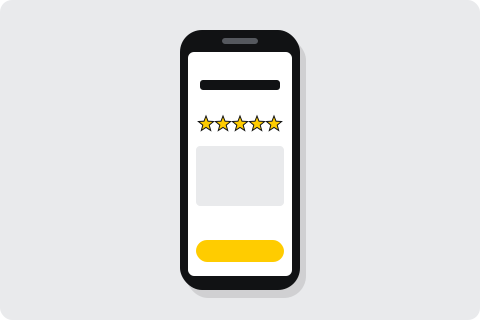
- The review form opens. It shows your business name and 5 empty stars.
- They rate and post. Google asks them to sign in to a Google account before the review is published.
Customers without a Google account cannot post. Keep another way to give feedback, such as a reply email, for them.
One code for each location
Each location has its own Google Business Profile and its own review link. Make a separate code for each one, so reviews reach the right branch. Label the files clearly before you send them to print. The scan count for each code then also shows which branch asks most often.
Test it before you print
Scan the code with your own phone. It should open the review form for your business, with the star rating ready to tap. If it opens the wrong place or a search page, check the link or Place ID and edit the destination.
Why a dynamic code
The code points at a short link you can change later. You might move, or Google might change the review link. Edit the destination, and the cards already on your tables and counters follow. You can also see how many times the code was scanned.
Where to put it
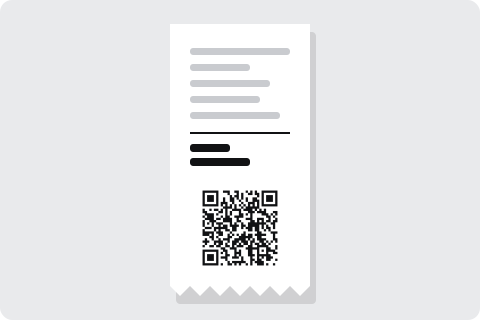
- Receipts and invoices. Customers see it right after paying.
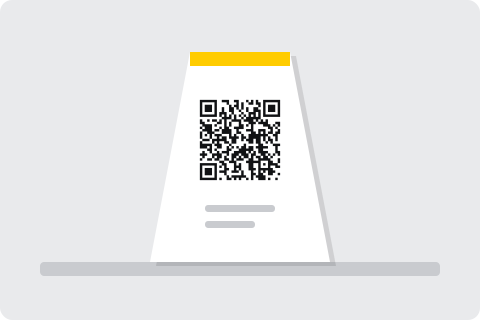
- Table cards and the counter. Guests can scan while they wait for the bill.
- Takeaway bags and parcels. A small card reaches customers when the order arrives.
- Follow-up emails. Use the short link, or the PNG for people reading on a computer.
- The door or window. Customers see it on their way out.
Add a short line next to it, such as "Tell us how we did on Google". People then know what they will get before they scan.
How to ask for reviews fairly
- Ask everyone. Hand the card to every customer, not only the ones you expect to be happy. Google's review policies forbid asking only for positive reviews.
- Offer no reward. Google's review policies forbid offering anything in return for a review, such as a discount or a gift.
- Ask at the right moment. Right after paying, or when an order arrives, while the visit is still fresh.
- Say how long it takes. A line such as "It takes a minute" tells customers it is a small favour, not a survey.
- Reply to reviews. A short, polite reply to good and bad reviews shows other customers that you read them.
Printing tips
- Size. At least 2 cm wide on receipts, and at least 3 cm on table cards and counter stands.
- Contrast. Dark squares on a light background, with a clear margin around the code.
- Placement. Keep the code away from folds and glossy glare.
- File. Send the SVG to your printer, and use the PNG for screens and emails.
- Proof. Scan a printed proof with two phones before you order the full run.
Examples
Questions
How do I find my Google review link?
Sign in to the Google account that manages your business, search for your business name on Google and choose "Ask for reviews". Google shows a short link to copy.
Can I change the link after printing?
Yes. The code points at a short link, so you can edit the destination from your free account and the cards already printed follow.
Can I see how many people scanned it?
Yes. Each code shows a total count of scans.
Can I offer a reward for a review?
No. Google's rules for reviews forbid offering money, discounts or gifts in return for one. Asking every customer is fine.
Where should I put the code?
Receipts, table cards, the counter and takeaway bags: anywhere customers pause after paying.
No code made here is ever switched off for non-payment. Read the pledge.